LLM response validation
LLM response validation sends answers generated by an LLM to a helpdesk agent for review before the user sees them. The agent approves or edits the answer, or takes over the conversation. The user receives the answer without noticing the review.
LLM response validation requires Multichat.
How LLM response validation works
When a generated answer needs review, Druid places it in the waiting queue. A helpdesk agent reviews it, corrects it if needed, and approves it. Druid then sends the answer to the user.
Answers waiting for review are never part of a live chat. They stay in the waiting queue, even while an agent reviews them.
Send LLM answers for review
Configure your Knowledge Base response flow to send low-confidence answers for review.
- Open the Knowledge Base response flow. To find it, select NLU > Knowledge base > Knowledge Base Settings. The flow is selected in General > Configurations > Knowledge Base response flow.
- After the step that builds the answer, add a branch.
- Set the branch condition, for example
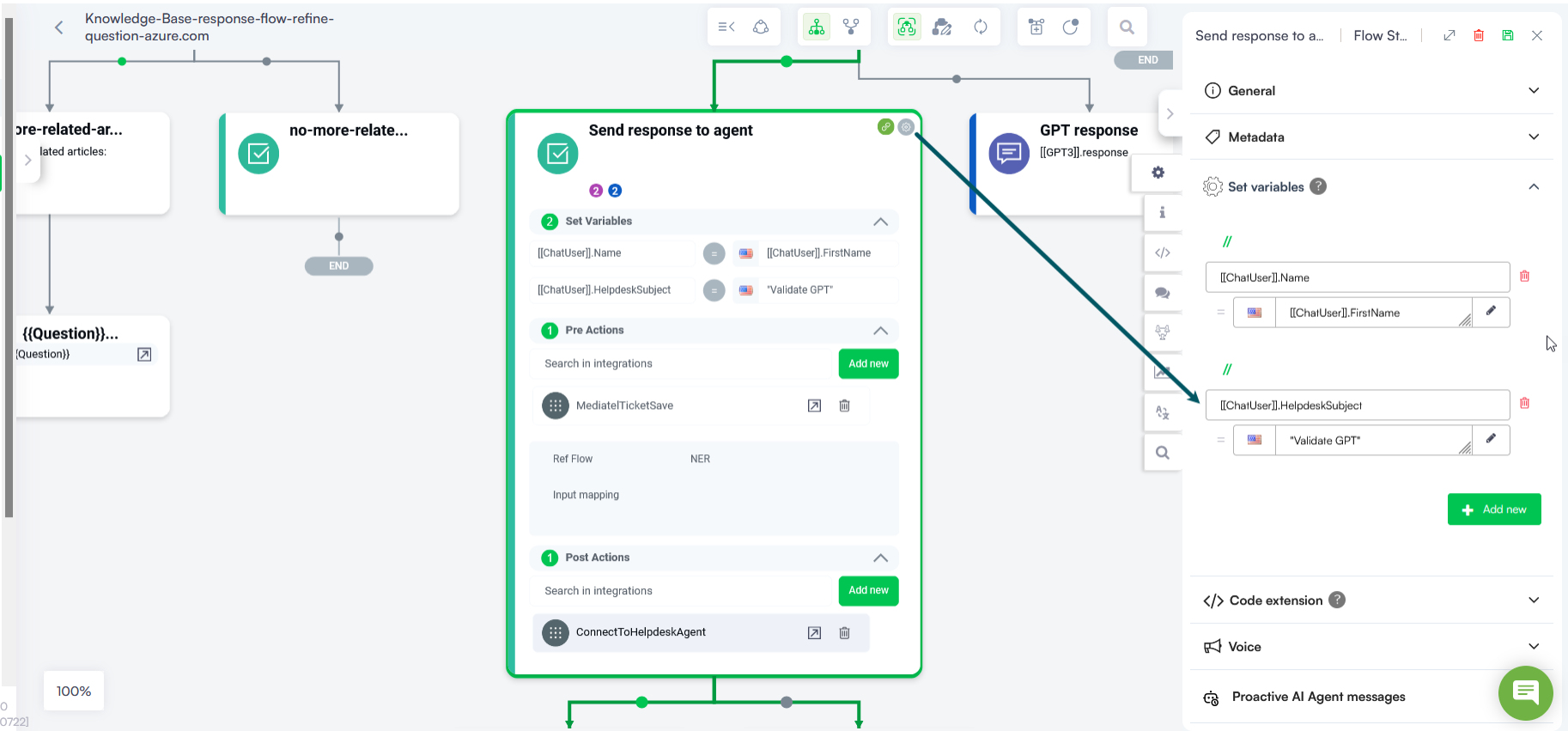
[[Intent]].KBQnAItems[0].Score < 0.95. Adjust the threshold to your needs. - On the branch, add an Action step. In Post Actions, add the
ConnectToHelpdeskAgentinternal action with these parameters:Copy{
"ForBotResponseValidation": true,
"InfoToValidate": {
"UserQuestion": "[[Entity]].UserQuestion",
"BotResponse": "[[Entity]].BotResponse",
"MaxWaitTimeForAgentResponse": 30
},
"ResponseEntity": "[[Entity]].AgentResponse"
} - In Set Variables of the same step, set
[[ChatUser]].HelpdeskSubjectto a value that tells agents this is a review, for example"Validate GPT". - After the step, add two branches:
- One that sends the validated answer from the response entity.
- One that sends a fallback message when no answer is available in time, for example when
[[ChatUser]].ConversationStatus == "QueueTimeOut".
| Parameter | Description |
|---|---|
ForBotResponseValidation
|
true sends the answer for review instead of starting a live chat. |
InfoToValidate.UserQuestion
|
The entity field or variable (@UserQuestion) that holds the user's question. |
InfoToValidate.BotResponse
|
The entity field or variable (@BotResponse) that holds the generated answer. |
InfoToValidate.MaxWaitTimeForAgentResponse
|
How long, in seconds, Druid waits for the agent. The job that checks this runs every 15 seconds. |
ResponseEntity
|
The entity field that receives the answer approved by the agent. |

Handle timeouts
If an answer waits for review longer than Live chat queue waiting timeout mins, Druid triggers the live-chat-waiting-message-in-the-queue flow. In that flow, add a branch for [[HelpdeskClient]].BotValidationStatus == "timedout" that tells the user to wait, for example "It's taking a little longer to answer this question. Please wait a bit more."
Review LLM answers in Multichat
Answers waiting for review appear in the Waiting list, in the Low Confidence section. When the agent selects an answer, the user's question and the generated answer appear on the right.


The agent can:
- Approve the answer. Druid sends it to the user and removes it from the waiting list.
- Edit the answer, and then save it. Druid sends the edited answer.
- Select Pickup to start a live chat with the user, when the question needs more time.

If the agent doesn't approve the answer before MaxWaitTimeForAgentResponse, the answer is shown in gray when the agent hovers over it in the waiting list. The agent can remove it with the close icon.

Review timestamps
[[HelpdeskClient]] records when the agent acted on an answer. These fields are also available when MaxWaitTimeForAgentResponse is reached.
| Field | Type | Recorded when |
|---|---|---|
BotResponseValidationFirstClick
|
DateTime | The agent first selects the answer. |
BotResponseValidationEdit
|
DateTime | The agent selects the Edit icon. |
BotResponseValidationPickUp
|
DateTime | The agent selects Pickup. |
BotResponseValidationSave
|
DateTime | The agent approves the answer, or saves and closes the edited answer. |
 Related Topics